BlogGuides
GuidesDevplan
How to connect Claude Code to your product context (MCP + CLAUDE.md)
Connect Devplan to Claude Code with one command and a few lines in CLAUDE.md, so Claude checks customer requests, decisions and project status before coding.
Claude Code reads your repository. It doesn't know which customers asked for the feature you're about to build, what the team decided about it last month, or what's still open on the project. That context lives in support tickets, sales calls, Slack threads and Jira or Linear.
This guide connects Claude Code to that context through Devplan. It takes one command and a few lines in CLAUDE.md. When you're done, Claude checks customer requests, past decisions and project status before it writes code, and it cites where each answer came from.
If you're a product manager rather than an engineer, start with Claude Code for product managers instead.
Before you start
You need:
- Claude Code, installed and signed in. Anthropic's setup guide covers macOS, Linux and Windows.
- A Devplan workspace with at least one source connected: a support tool such as Zendesk or Intercom, a CRM such as HubSpot or Salesforce, GitHub, or Jira or Linear. Devplan starts with $100 in free credits, no card needed.
The sources matter more than the setup. Claude can only look up what Devplan has read, so connect the tools where customer requests and decisions actually live before you test anything.
Step 1: Add the Devplan MCP server
From the repository you work in, run:
claude mcp add --transport http devplan-remote https://app.devplan.com/api/v1/mcpThis adds Devplan as a remote MCP server. MCP, the Model Context Protocol, is the standard Claude Code uses to connect to outside tools and data (docs). Devplan hosts the server, so there's nothing to install or keep running.
By default, Claude Code adds the server at local scope: it's available to you, in this project only. There are two other options:
--scope usermakes it available to you in every project on your machine.--scope projectwrites it to.mcp.jsonin the repository root. Commit that file and everyone who works in the repository gets the same server. Claude Code asks each person to approve a project-scoped server before it uses it, and each person still signs in to Devplan themselves.
Step 2: Sign in and pick your workspace
Start Claude Code and run /mcp. Select devplan-remote and follow the steps in your browser: sign in to Devplan, choose the workspace Claude Code should use, and select Authorize. If you'd rather stay in the shell, claude mcp login devplan-remote runs the same sign-in.
Pick the workspace carefully. Claude only sees the workspace you authorize, so the wrong one means answers about the wrong product. To switch later, open /mcp and choose Re-authenticate.
For scripts and CI, where a browser sign-in isn't possible, create a workspace API key in Devplan under Settings > Workspace > API Keys and send it as a bearer token:
claude mcp add --transport http devplan-remote https://app.devplan.com/api/v1/mcp \
  --header "Authorization: Bearer $DEVPLAN_API_KEY"
Copy the key when you create it, because Devplan won't show it again. Keep it in an environment variable or a secret store, and never commit it to .mcp.json.
Step 3: Check the connection
Run /mcp again, or claude mcp list from the shell. Devplan should show as connected. Then ask:
Use Devplan to list projects in this workspace, including their names and status.Check two things in the answer. Claude should call a devplan-remote tool, which you'll see in the session, and the projects should come from the workspace you expected. If either is off, the MCP setup guide has a troubleshooting section.
What Claude can look up now
Once connected, Claude Code sees Devplan's tools and reads their descriptions on its own. These are the ones you'll see most:
| Tool | What Claude uses it for |
|---|---|
search_entities |
Finds customer requests, tickets, calls and decisions on a topic. "Who asked for this?" |
query_workspace_graph |
Follows the links between records: which request led to which decision and project. "What did we decide about billing, and why?" |
fetch_internal_entities_by_ids |
Opens specific records and the sources behind them. "Show me the tickets behind that answer." |
list_workspace_projects |
Lists projects with what's planned, done and at risk. "What's left on this project?" |
list_product_feature_catalog |
Browses the features and capabilities Devplan has mapped in your product. "What does this capability do today?" |
fetch_external_documents |
Reads specs and notes from the tools you connected to Devplan. "Find the spec for this feature." |
The exact list depends on your workspace and can change. Claude reads the live tool descriptions every time it connects, so you don't need to memorize any of this.
Step 4: Make it a habit with CLAUDE.md
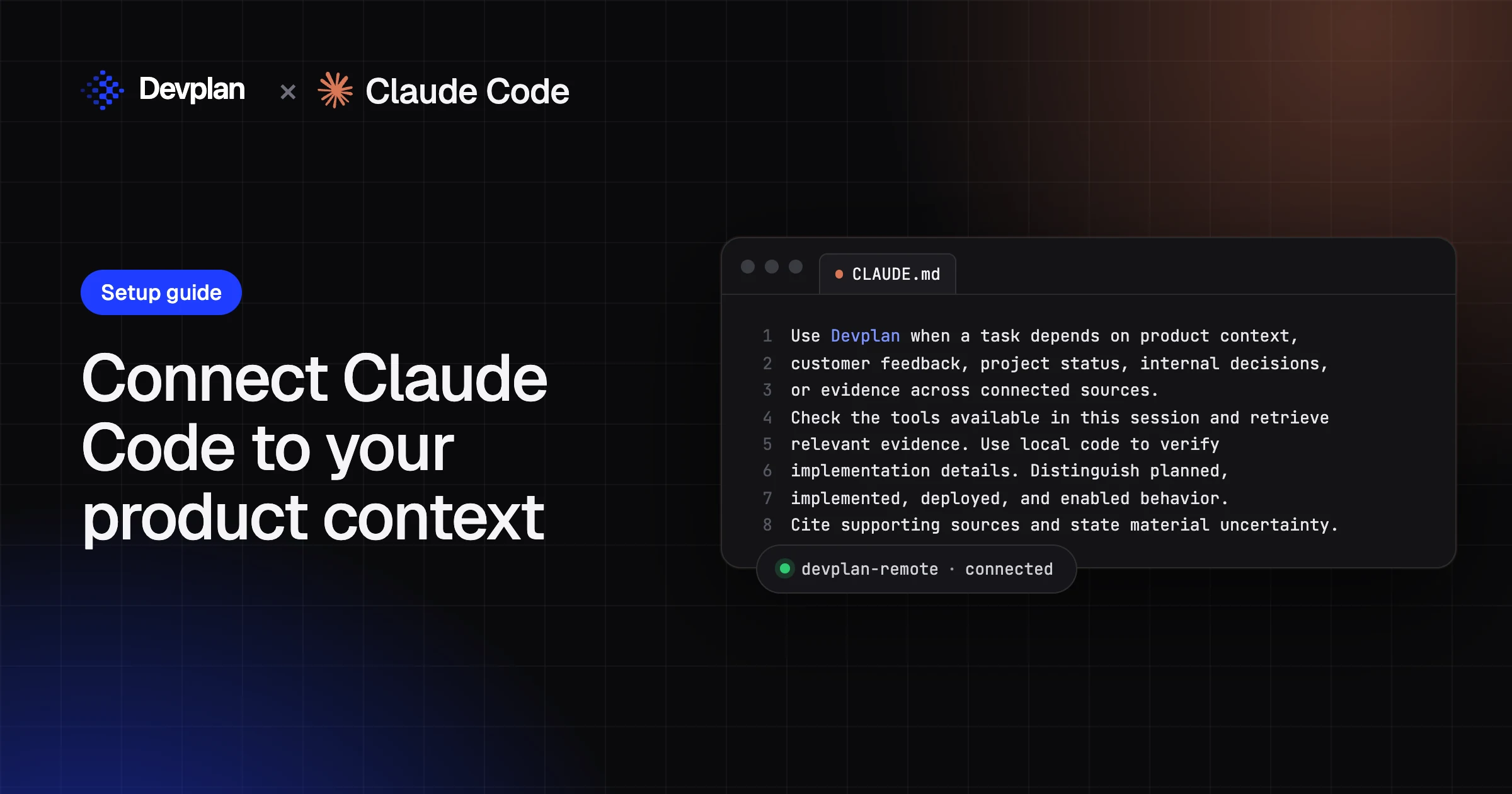
Claude Code reads CLAUDE.md at the start of every session (docs). Without a rule there, Claude uses Devplan only when you ask it to. Paste these lines next to your other rules:
Use Devplan when a task depends on product context,
customer feedback, project status, internal decisions,
or evidence across connected sources.
Check the tools available in this session and retrieve
relevant evidence. Use local code to verify
implementation details. Distinguish planned,
implemented, deployed, and enabled behavior.
Cite supporting sources and state material uncertainty.
Each part is there for a reason:
- "When a task depends on product context" keeps Claude from calling Devplan to fix a typo. It looks things up when the answer could change the code.
- "Use local code to verify implementation details" splits the work. Devplan knows what was asked for and decided, and the repository is the source of truth for what the code does.
- "Distinguish planned, implemented, deployed, and enabled" prevents a common mistake. A decision or a closed ticket doesn't prove the code exists, and merged code isn't always switched on for customers.
- "Cite supporting sources and state material uncertainty" gives you a link to the ticket or call behind each claim, and makes Claude say when it isn't sure.
Prompts for four moments in a task
Before you start. Ask who wanted the change and what they expect, so the plan starts from the request instead of the ticket title.
Before you start on the onboarding changes, check which customers asked for them and what they expect.Claude searches the requests, groups them by customer and links each one to its ticket or call.
While you edit. Ask for decisions that limit the change.
Before editing billing, check for product decisions I should respect.If the team decided, say, that annual plans keep their price until renewal, Claude finds that decision and keeps the change inside it.
Before the pull request. Turn the requests into a checklist and compare the branch with it.
Draft acceptance criteria for this change from the customer requests, link each one to its source, then list anything this branch doesn't cover yet.After you merge. Check what's still open.
What's left on the onboarding project, and is anything at risk?A few more that work well:
- "Which customers are waiting on this fix?"
- "Explain what this capability does, then compare it with the code."
- "What changed since the last release?"
- "What did we decide about pricing last month?"
Codex, Cursor and other clients
Codex connects with two commands:
codex mcp add devplan-remote --url https://app.devplan.com/api/v1/mcp
codex mcp login devplan-remote
Codex reads AGENTS.md, so put the same lines from Step 4 there.
Cursor and any other client that supports remote HTTP MCP servers can add https://app.devplan.com/api/v1/mcp in its MCP settings. The format differs from client to client, and the MCP setup guide has an API-key example for clients that can't sign in through a browser.
What Claude can and can't see
- Only the workspace you authorize. That means customer feedback, decisions, projects and documents from the tools you connected to Devplan.
- Nothing you haven't connected. If a source isn't in Devplan, Claude can't look it up. The connection also doesn't expose every field you see in the Devplan app.
- No result isn't proof. An empty answer can mean a source isn't connected or hasn't finished processing, so check before you conclude nobody asked.
- Answers come with sources. Each claim links back to the ticket, call or decision it came from, so you can check it before you rely on it.
- Some tools can write. Depending on how your workspace is set up, some tools can start planning or update content. Review what Claude proposes, as you would any other change.
- Your data stays yours. Devplan is SOC 2 Type II, encrypts data in transit and at rest, and never trains models on your data.
Frequently asked questions
Is the Devplan MCP server local or remote?
Remote. Devplan hosts it at https://app.devplan.com/api/v1/mcp, so there's nothing to install or keep running. Claude Code connects over HTTP and signs in through your browser.
Can the whole team share one setup?
Yes. Add the server with --scope project and commit .mcp.json, together with the CLAUDE.md lines. Everyone in the repository gets the same server and the same rule. Each person approves the server once and signs in to Devplan with their own account.
What happens when Devplan has no answer?
With the CLAUDE.md lines above, Claude is told to state uncertainty, so it should say it found nothing instead of guessing. Before you treat that as "nobody asked", check that the right sources are connected in Devplan and have finished processing.
Give Claude Code the why. Connect Devplan to Claude Code and start with $100 in free credits, no card needed.